
 Sponsored post – OST file – a cached copy of your mailbox items – is automatically generated when you configure Outlook profile with Exchange Server, Microsoft 365, or IMAP account. At times, situations arise when you need to open the OST file in another account, or migrate it to another Outlook, or take a backup. In such situations, you need to convert the OST file into PST format, which is easily accessed/imported into any Outlook profile.
As mentioned, a OST file – a cached copy of your mailbox items – is automatically generated when you configure Outlook profile with Exchange Server, Microsoft 365, or IMAP account. This file is by default encrypted with MAPIEntryID GUID key and linked with the profile in which it is created. As a result, you cannot access or open it any other Outlook account or profile.
At times, situations arise when you need to open the OST file in another account, or migrate it to another Outlook, or take a backup. In such situations, you need to convert the OST file into PST format, which is easily accessed/imported into any Outlook profile. In this article, we will discuss the top methods of converting OST to PST with or without Outlook.
Top Methods to Convert OST into PST
Below, we will be listing some reliable and secure methods for converting OST file into PST format.
1. Using Outlook Import/Export Wizard
One of the best methods to convert the OST file into PST format is by using the in-built utility in Outlook – Import/Export Wizard. With the help of this utility, you can export your emails, contacts, and other items to PST file. Below are the steps to do this:
- Open your Outlook on your device.
- Go to File and click on the Open & Export option.
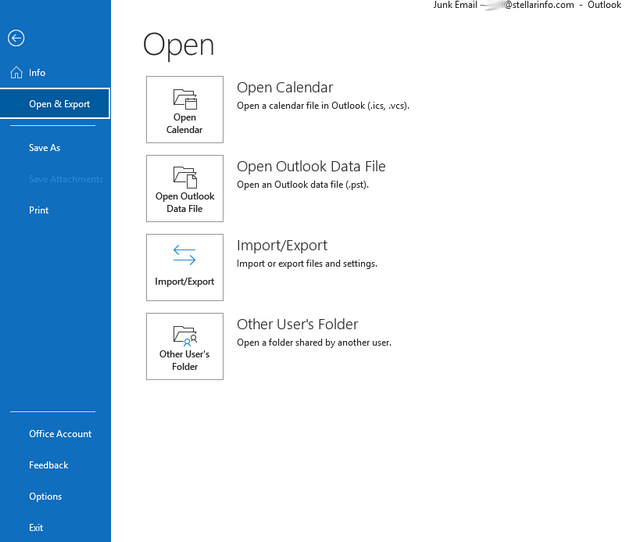
- Select the Import/Export option.
- Now, select the option – Export to a File.
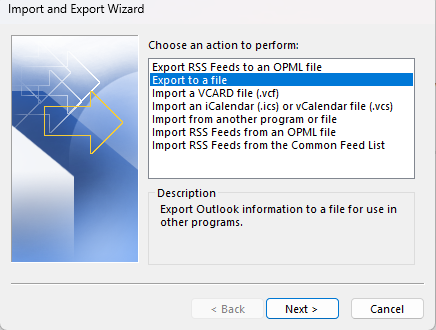
- Click on Next.
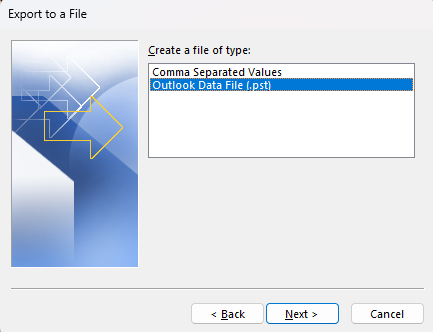
- Select Outlook Data File and click Next.
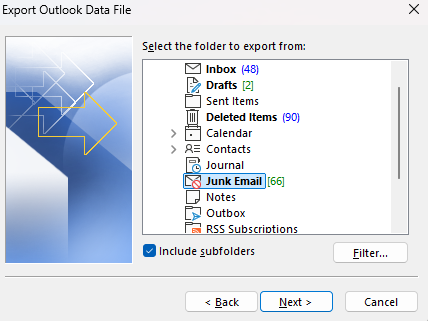
- Select your main mailbox folder or folders you want to convert to PST, check the Include subfolders box, and click Next.
- Give a name your PST (e.g. Data_Backup_Jan2026.pst) and choose a save location.
- Click Finish.
2. Using Outlook Archive Feature
Another way to convert your OST file is by using Archive feature in Outlook. This feature is essentially used to move older mail items to a separate PST file. Follow the steps given below to convert your OST file items into PST format using this feature:
- Navigate to File > Tools > Cleanup Old Items.
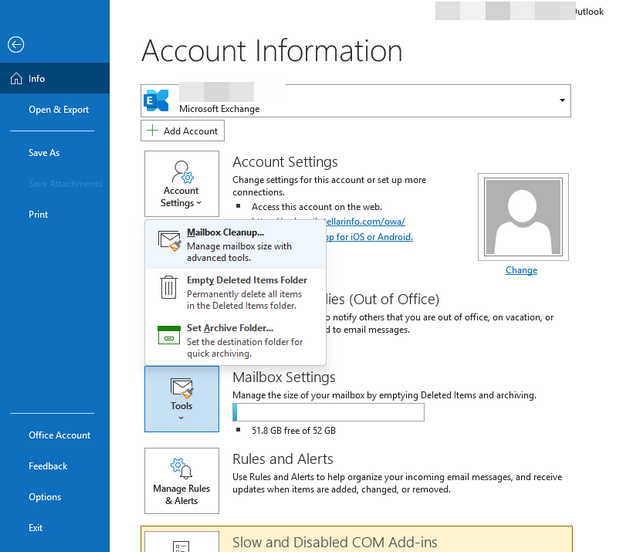
- Select Archive this folder and all subfolders and then choose the folders you want to convert to PST.
- Set a date for items older than that you want to archive (e.g., Archive items older than: 10/1/2025).
- Choose a location for the archive PST.
- Click OK. Outlook will create a PST containing all the items older than the selected date.
3. Using Drag & Drop Method
There is another way you can follow for converting OST file items into PST format. In this, what you have to do is first create a new PST file, and then drag and drop the items you want to convert from the OST file (mailbox) into it. Here's how to use this method:
- In your Outlook, go to the Home menu.
- Click New Items > More Items.
- Click on Outlook Data File to create a new PST file.
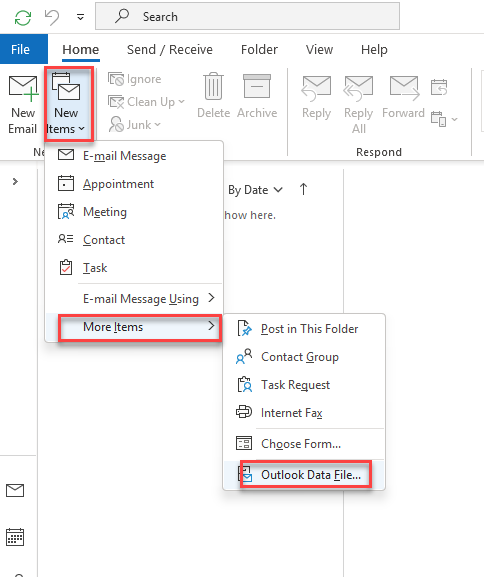
- Select a location and name the PST file (e.g., My Name_PC.pst). Click OK.
- A new blank PST file will be created and appear in the left pane in your Outlook window.
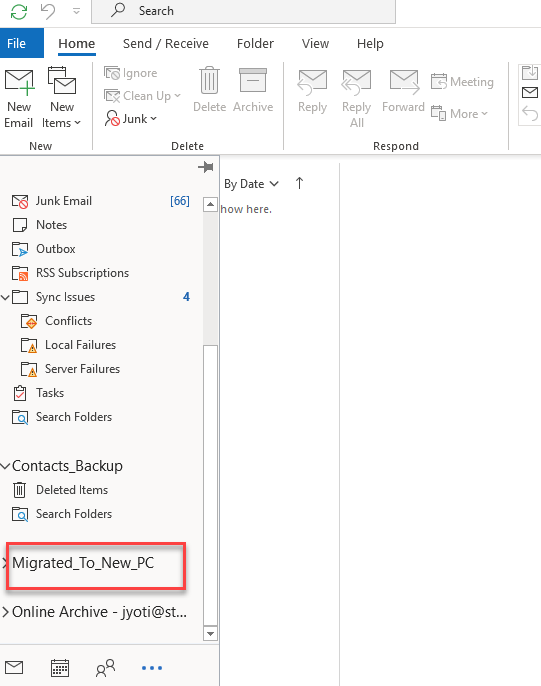
- Now, you can drag and drop the required folders into this PST file.
4. Using a Professional OST to PST Converter Tool
Outlook's built-in features, like Import/Export wizard and Archive are only helpful when you can access your Outlook profile. But if your OST file becomes inaccessible or Outlook is not working, then these methods will not be feasible. In such situations, the best way is to use an advanced OST to PST converter tool, like Stellar Converter for OST. This is one of the reliable methods to convert your OST file, even if it is inaccessible or orphaned. This tool can covert convert OST file of any size into Outlook importable PST file by maintaining original folder hierarchy and structure. Also, you can save the converted data in several other formats, like MSG, EML, RTF, HTML, PDF, etc. Here's how you can use this tool:
- Visit the website from Stellar, download and install the tool on your Windows device.
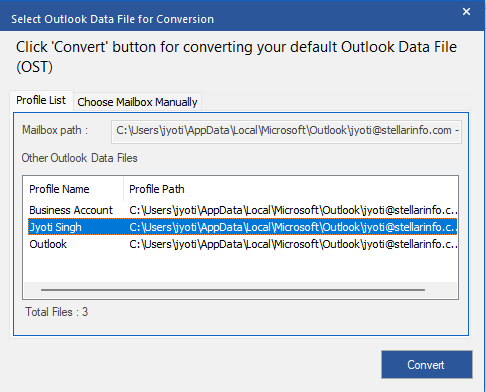
- Open the tool. You will see two options: List Profiles and Choose Manually.
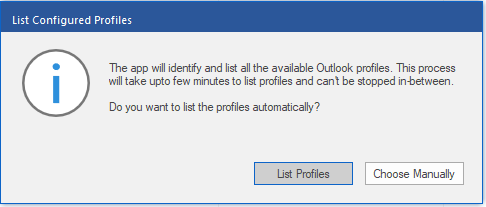
- Click on List Profiles. This will automatically list all your Outlook data files associated with your Outlook profile. Select Choose Manually if your OST file is inaccessible or located at a different location.
- After choosing the OST file, click on Convert.
- After the conversion process is complete, your mailbox items are listed in a three pane preview window.
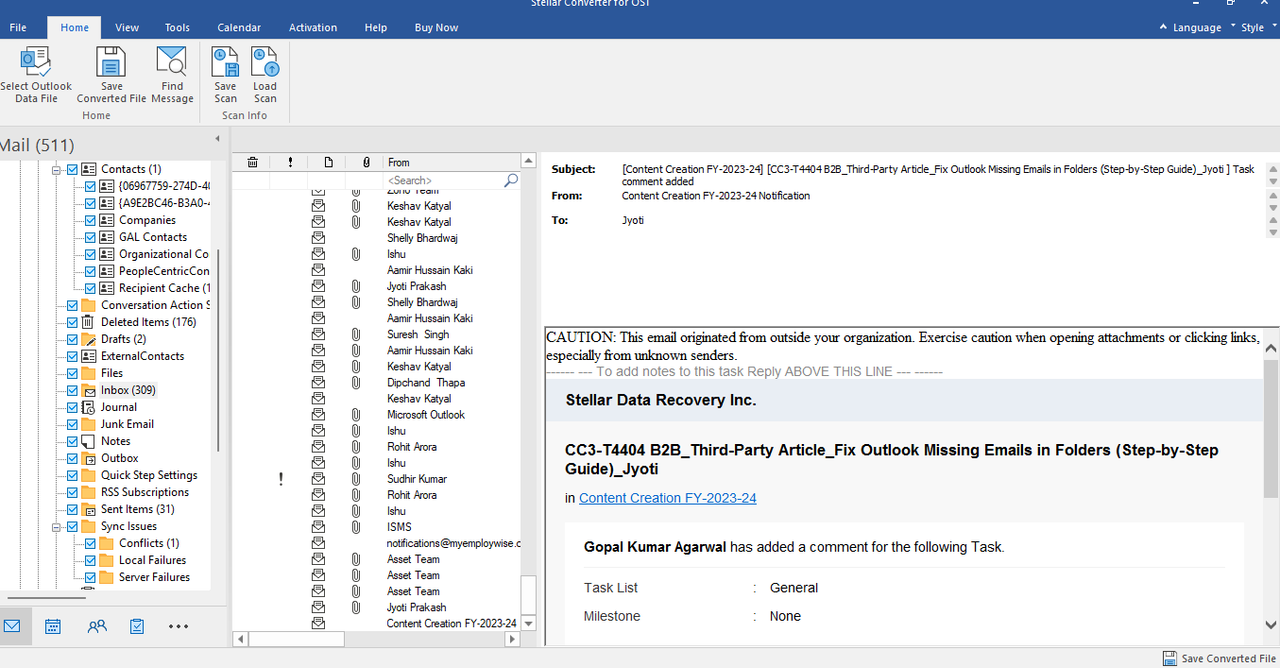
- Select all or any of the items you want to convert to PST file.
- Click on Save converted file and choose the PST file format.
- Select the desired location to save the PST file and click OK.
The converted file will be saved at the location selected by you. As you've seen, converting OST file to PST by using this specialized OST to PST converter tool requires minimal efforts and time.
Conclusion
In this article, we have mentioned different methods for converting OST file into PST. Converting OST file using Import and Export wizard and Archive feature in Outlook is feasible if your OST file is accessible and your profile is active. If this is not the case, then the only and best option is to use a professional OST to PST converter tool, like Stellar Converter for OST. This tool can extract all the items from OST file of any size and in any state (orphaned or inaccessible) and save them to PST file.