
 [German]In September 2024, Microsoft published a support article on the Outlook error reporting a missing msls70.dll and reported that it was investigating the problem. Microsoft now claims to have fixed this error.
Review of the Outlook classic error
With Microsoft Outlook classic, some users are plagued by a problem with the missing msls70.dll file. On startup, Outlook reports that the required msls70.dll file cannot be found..
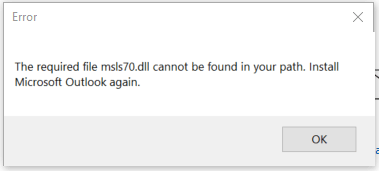 (Quelle: MS Answers)
Various reports of this problem were posted on the internet back in August 2024. One affected person had described a crude observation: "The problem disappears for a few days after updates, but then reappears after a week".
I took up the issue in September 2024 in the German blog post Microsoft untersucht den Outlook-Fehler, dass msls70.dll nicht gefunden wird and also linked to some Internet reports.
On September 10, 2024, Microsoft published the support article Classic Outlook errors on startup "The required file msls70.dll cannot be found in your path" regarding this problem. The support article applies to Excel for Microsoft 365 Word for Microsoft 365 Outlook for Microsoft 365 PowerPoint for Microsoft 365 and OneNote for Microsoft 365 and confirms that after the latest updates (August 2024) of Microsoft 365, the following error message may be displayed when starting Outlook, Word or other Office applications:
The required msls70.dll file cannot be found in your path. Install Microsoft Outlook again.
Alternatively, the file pagelayout.dll cannot be found and the user should reinstall Microsoft Outlook. Microsoft confirms in the article that the Outlook team is investigating this problem but has not yet found a solution.
Microsoft has fixed the problem
A German user has now reported in this comment that the problem has been fixed (thanks for the tip). Microsoft has updated the support article Classic Outlook errors on startup "The required file msls70.dll cannot be found in your path" as of March 31, 2025.
Microsoft states the status of the bug as "fixed" and writes that the Office team has made a change in version 2504 build 18730.20000 to mitigate the problem.
Microsoft's explanation is that this problem can occur if the Office version does not match the Office channel. This would also explain the above observations. For example, the problem can occur when clients are in the monthly Enterprise channel, but the version of the Office application is the version of the current channel. Administrators should make sure that the channel the clients are in matches the version shown for that channel in the update history, Update history for Microsoft 365 apps (listed by date).
To see the Office version, open Word and select File, Account and find the information under About Word. If the version does not match, there is a problem with the deployment configuration.